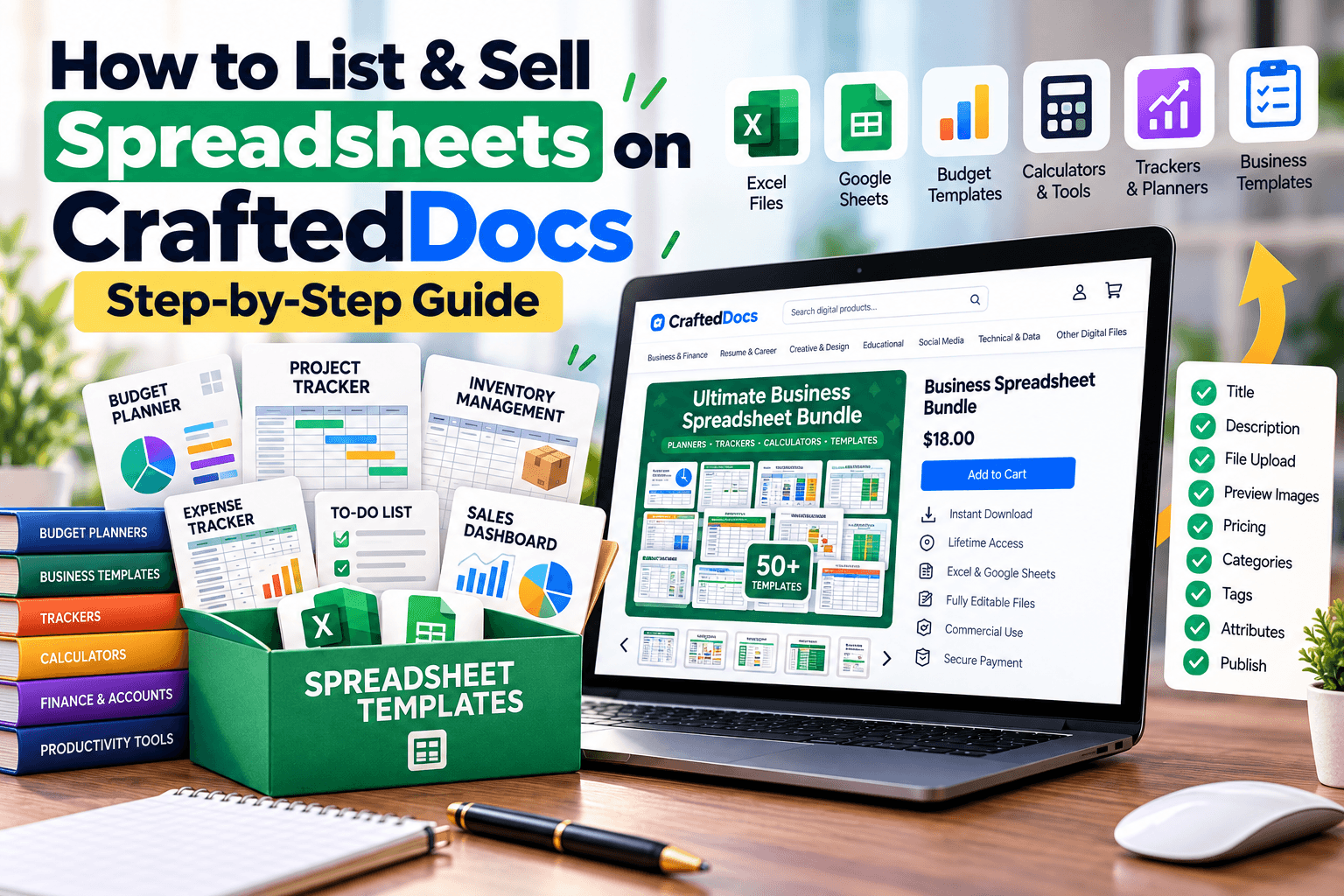
The Spreadsheet category is for anything built in Excel, Google Sheets, or similar tools — trackers, calculators, financial models, and structured data files. This guide walks through exactly what qualifies and how to complete the listing form.
What Counts as a "Spreadsheet"
- Budget trackers and expense planners
- Financial models — projections, amortisation schedules, investment calculators
- Business templates — invoices, inventory trackers, CRM sheets
- Productivity planners — habit trackers, content calendars, project planners built in Sheets/Excel
- Data files — structured CSV datasets for analysis or reference
- Academic or exam trackers — study schedules, marks trackers, revision planners
A spreadsheet that just displays information (like a printed schedule) might fit better as a PDF under Notes & PDFs. This category is specifically for files the buyer will open and interact with — entering their own numbers, using formulas, or editing cells.
File Requirements for This Category
| Requirement | Detail |
|---|---|
| Accepted formats | .xlsx .xls .csv .ods |
| Max file size | 50MB |
| Cover image | Required — JPG, PNG or WebP, max 5MB |
| Free preview file | Optional — max 8MB, e.g. a locked demo version |
| Gallery images | Optional — up to 6, max 5MB each |
Step-by-Step: Listing Your Spreadsheet
- Select "Spreadsheet" from the category tabs on the listing form.
- Write a specific title — e.g. "Monthly Budget Tracker + Expense Planner (Excel)" tells the buyer the exact use case and format.
- Set your price in ₹ — minimum ₹9, you keep 80% of every sale.
- Add a sale/offer price (optional) — shown with strikethrough on the original, must be at least ₹5 lower.
- Enter the number of sheets/tabs — this signals depth and complexity to buyers browsing similar options.
- Write your description — explain what formulas or automations are built in, whether it works in both Excel and Google Sheets, and who it's designed for.
- Add tags — e.g. "budget, tracker, Excel, finance" — these power search discovery.
- Upload your file — .xlsx, .xls, .csv, or .ods, or an external link if hosted elsewhere.
- Add a free preview file (optional) — a view-only or partially locked version helps buyers trust the quality before paying.
- Upload a cover image — required. A screenshot of the spreadsheet with sample data filled in works best.
- Add gallery images (optional) — show different sheets/tabs, up to 6 images.
- Confirm the originality checkbox to certify the file is your own original work.
- Click "List for sale" — listings are reviewed and typically go live within 24 hours.
Tips for Selling Spreadsheets Well
- Fill your cover image screenshot with realistic sample data rather than an empty template — buyers want to see it in action.
- Mention compatibility clearly: "Works in Excel and Google Sheets" is a strong selling point if true.
- Lock formula cells to prevent accidental edits, and note this in your description as a quality signal.
- Bundle related sheets (e.g. a full personal-finance suite) once you have a few — bundles increase average order value.
Frequently Asked Questions
Can I sell a Google Sheets file without exporting it to Excel?
You'll need to export it as .xlsx, .xls, .csv, or .ods, or provide an external link to a view/copy-access Google Sheets URL.
Do buyers need Excel installed to use my spreadsheet?
Not necessarily — .xlsx and .csv files open in free tools like Google Sheets too. Mention compatibility in your description.
Should I protect my formulas from being edited?
It's a good practice — locking formula cells (while leaving input cells editable) keeps your spreadsheet working correctly for buyers.
What if my spreadsheet includes macros or scripts?
Mention this clearly in your description, since some buyers' security settings may block macros by default.
Ready to put your notes to work? Create a free seller account on CraftedDocs and upload your first file today — it takes less than ten minutes to go live.