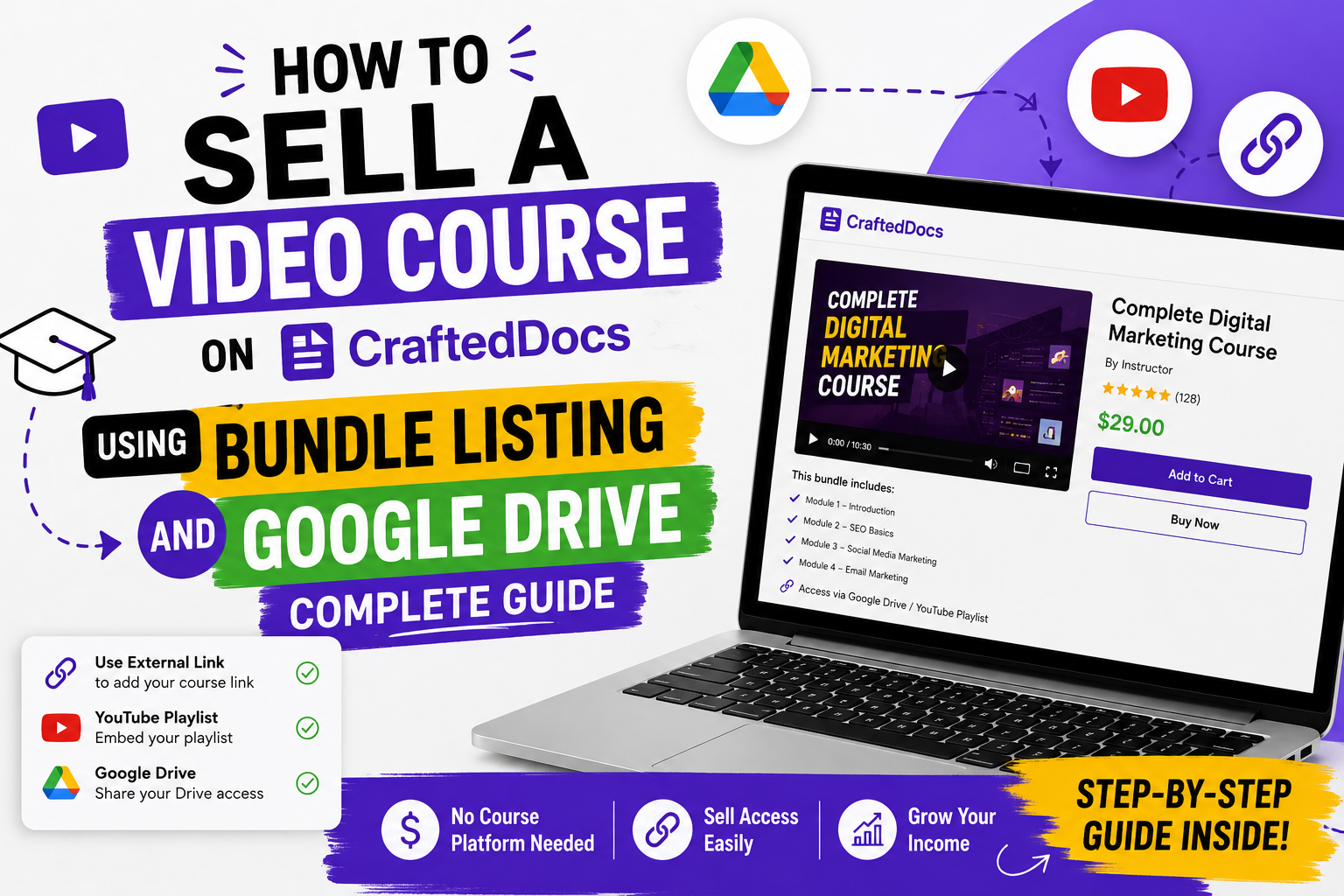
Can You Sell a Video Course on CraftedDocs?
Yes — and you do not need Udemy, Teachable or any paid course platform to do it.
CraftedDocs has two features that work together perfectly for course creators:
- External Link listing — instead of uploading a file, you paste a link to your Google Drive folder, YouTube playlist, Notion page or any hosted content. After a buyer purchases, they receive your link and can access the course immediately.
- Bundle listing (ZIP) — if your course includes downloadable materials (slides, notes, worksheets, code files), you package them into a ZIP and sell the file + link together.
This guide covers both approaches in full detail — from setting up your Drive folder to creating the listing, pricing it and promoting it.
What Kind of Video Courses Sell on CraftedDocs
CraftedDocs attracts students, college students, working professionals and people looking to learn specific skills. Your course will sell if it teaches something practical and specific. Top-performing course topics include:
- Academic subjects — video explanations of Class 11-12 chapters, university topics, entrance exam concepts (JEE, NEET, CA, UPSC, GATE)
- Computer skills — Python programming, Excel advanced functions, web development, data science, graphic design
- Freelancing skills — how to get clients on Fiverr, Upwork, how to do content writing, video editing, social media management
- Business and finance — stock market basics, personal finance, GST filing, how to start a business in India
- Creative skills — photography basics, video editing in CapCut or Premiere, Canva design, illustration
- Exam preparation — video solutions to previous year papers, concept explanation videos for specific topics
- Spoken English and communication — English speaking practice, interview preparation, presentation skills
Method 1 — Sell Using External Link (Google Drive Course)
This is the cleanest approach for most course creators. You host your videos on Google Drive and sell access to the folder via CraftedDocs.
Step 1 — Set Up Your Google Drive Folder
- Go to drive.google.com and create a new folder
- Name it clearly — e.g. "Python for Beginners — CraftedDocs Course"
- Upload all your video files into this folder. Accepted formats: MP4 (recommended), MOV, AVI, MKV
- Organise with sub-folders if you have multiple modules:
- Module 1 — Introduction
- Module 2 — Variables and Data Types
- Module 3 — Loops and Functions
- ... and so on
- Add a Welcome and Instructions.pdf at the top of the folder — this explains how to navigate the course, what order to watch videos in, and any prerequisites
Step 2 — Set Folder Sharing to View-Only
This is the most important step. Get it right:
- Right-click your main course folder in Google Drive
- Click Share → Share
- Under "General access" — change from "Restricted" to "Anyone with the link"
- Set permission to "Viewer" — NOT Editor or Commenter
- Click Copy link
- Open the link in an incognito browser window to test it — confirm you can see all videos without being logged into your Google account
Step 3 — Protect Your Content
Google Drive view-only access does not prevent downloading in all cases. To protect your videos:
- Right-click the folder → Share → click the gear icon at the top right of the share dialog → uncheck "Viewers and commenters can see the option to download, print and copy". This disables the download button for anyone who is not signed in to your Google account.
- Add a visible watermark on your videos — include your name or "CraftedDocs.com — Course by [Your Name]" as an overlay. Simple to add in any video editor.
- Record a brief intro on each video that identifies the course and creator — this discourages sharing
Step 4 — Create Your CraftedDocs Listing
- Go to crafteddocs.com/sell
- Fill in your listing details (covered below in detail)
- In the File Upload field, select "External Link" option
- Paste your Google Drive folder link
- Submit for review
After a buyer purchases your listing, CraftedDocs shows them the Google Drive link on their download page and sends it in their purchase receipt email. They click the link and get immediate access to your course folder.
Method 2 — Sell Using Bundle Listing (ZIP + Drive Link)
This is the premium approach — buyers get both a downloadable ZIP of course materials AND access to your video folder. It justifies a higher price and delivers significantly more perceived value.
What Goes in the ZIP Bundle
Your ZIP should contain everything a buyer needs alongside the videos:
- Course overview PDF — table of contents, module list, learning objectives
- Lecture slides — your presentation slides for each module (PPTX or PDF)
- Workbooks or exercises — practice problems, exercises, assignments for each module
- Code files — if teaching programming, include all sample code and starter files
- Cheat sheets — one-page quick reference sheets for key concepts
- Templates — any templates mentioned in the course
- Resources list — a PDF linking to all tools, books and references mentioned
- IMPORTANT — Course Access Instructions PDF — include your Google Drive link INSIDE the ZIP in a PDF called "Step 1 — Access Your Course Videos.pdf"
How to Create the ZIP
- Create a folder named after your course
- Organise files in sub-folders matching your video modules
- Add all materials listed above
- Include the "Step 1 — Access Your Videos.pdf" with the Drive link prominently on page 1
- Right-click the folder → Compress (Mac) or Send to → Compressed ZIP (Windows)
- Name the ZIP: "PythonCourse-Materials-CraftedDocs.zip"
- Test it — extract on a different computer and verify every file opens
Upload the ZIP as Your Main File
On the CraftedDocs sell form, upload the ZIP as your main file (not an external link). The ZIP itself contains the Drive link, so buyers get everything in one download. This approach works because:
- The ZIP is verified by our file checker — confirms it is not corrupt
- Buyers get immediate download access to the materials
- The Drive link inside the ZIP gives them course video access
- Your listing shows the "Verified File" badge for added credibility
How to Create the Perfect Course Listing
Title — Include These Keywords
Your title should include: the skill or subject, the level, "video course", "Google Drive" or "online course", and the format.
Good title examples:
- Python for Beginners — Complete Video Course — 12 Hours — Google Drive Access + Notes PDF
- Stock Market Basics for Students — Video Course — 8 Modules + Slides and Worksheets — Drive Access
- Excel Advanced Functions — Video Course — 6 Hours — 25 Lecture Videos + Practice Files — Drive Link
- UPSC History Preparation — Complete Video Lectures — 15 Modules — Google Drive + Notes Bundle
Category
Select "Other Digital File" for external link listings. For ZIP bundle listings, you can choose the most relevant category (Notes, Document etc.) or Other.
Description — This Is the Most Important Part
Your description converts browsers into buyers. Write at least 200 words covering all of the following:
Opening hook
Start with what the buyer will be able to do after completing the course. Not what you teach — what they achieve.
Example: "After completing this course, you will be able to write Python scripts from scratch, automate repetitive tasks and build simple data analysis projects — even if you have never written a line of code before."
Course overview
List every module with a brief description:
- Module 1 — Introduction to Python (3 videos, 45 minutes) — What is Python, why learn it, installing Python and setting up VS Code
- Module 2 — Variables and Data Types (4 videos, 55 minutes) — Strings, integers, floats, booleans, type conversion
- Module 3 — ... and so on
Course stats
Include these numbers prominently:
- Total number of videos
- Total video duration (hours and minutes)
- Number of modules or sections
- What downloadable materials are included (slides, worksheets, code files)
- What format the videos are in (Google Drive MP4)
Who this course is for
Be specific — "This course is for college students in their first or second year who have no prior programming experience."
Prerequisites
"No prior knowledge required. You need a laptop or desktop, a stable internet connection to access the Google Drive folder, and a Google account."
Access instructions
Explain exactly how buyers access the course after purchase: "After purchasing, you receive a Google Drive link. Click the link, sign in to any Google account (even a free Gmail), and you can watch all videos directly in your browser or download them to your device."
Lifetime access
"The course link is permanent — I will not delete or move the folder. Access your videos any time, from any device."
Price
Video courses can command much higher prices than individual files. Here is a pricing guide:
| Course Type | Recommended Price |
|---|---|
| Short course — under 2 hours — 5 to 8 videos | Rs.199 – Rs.399 |
| Standard course — 2 to 6 hours — 10 to 20 videos | Rs.399 – Rs.799 |
| Full course — 6 to 12 hours — 20 to 40 videos | Rs.699 – Rs.1,299 |
| Comprehensive course — 12+ hours or niche expertise | Rs.999 – Rs.2,499 |
| Bundle — course + notes + worksheets + slides | Add Rs.100-300 premium over video-only price |
Always set a sale price for your launch period — e.g. list at Rs.799, set sale price Rs.499 for the first month. The "Was Rs.799 — Now Rs.499" display on your listing drives urgency and conversions.
Cover Image
Your cover image is your course poster. Use Canva to design a professional-looking thumbnail that includes:
- Course title in large, bold text
- A number stat — "12 Hours", "25 Videos", "8 Modules"
- Your name or instructor name
- A relevant icon or image (laptop, code, chart etc.)
Courses with professionally designed cover images convert at 3-4x the rate of courses with plain or screenshot thumbnails. Spend 30 minutes on your cover image — it will pay back in sales.
Free Preview File
Create a PDF preview that includes:
- The complete module and video list (like a course syllabus)
- A sample screenshot or frame from one of your videos
- A short bio about you as the instructor
- Student outcomes — "By the end of this course you will be able to..."
Alternatively, take the first 1-2 lecture slides and the course overview PDF from your bundle and combine them into a preview PDF. This gives buyers a genuine taste of the course quality without giving away the actual videos.
Alternate Platforms You Can Link To
Google Drive is the most popular option, but CraftedDocs external links work with any publicly accessible URL:
YouTube (Unlisted Playlist)
- Upload your course videos to YouTube as Unlisted — not Public and not Private
- Unlisted means only people with the link can watch — the videos do not appear in search results or on your channel publicly
- Create a Playlist with all videos in order
- Set the Playlist to Unlisted as well
- Copy the Playlist URL and paste it as your external link
Advantage: YouTube streaming is smoother than Drive on mobile. Videos cannot be easily downloaded. The player is familiar to all users.
Disadvantage: YouTube can flag and remove videos for various reasons. Always keep a Drive backup.
Notion Page with Embedded Videos
- Create a Notion page for your course
- Embed videos from Google Drive or YouTube into each page section
- Add written notes, resources and links in Notion
- Share to web and copy the public link
Advantage: Creates a proper course-like experience with video + notes together. Buyers can duplicate the Notion page to their own workspace.
Telegram Private Channel
- Create a Telegram channel set to Private
- Upload course videos as Telegram posts
- After purchase, share the invite link to the private channel
Note: For Telegram, you will need to manually share invite links after each purchase — check your email notifications for new orders in your seller dashboard.
After Publishing — How to Manage Course Access
For Google Drive and YouTube links
Once published, the link delivers automatically after every purchase — no manual action needed from you. CraftedDocs sends the link in the purchase receipt email and shows it on the buyer dashboard. You only need to ensure the link remains active permanently.
Critical rules for course sellers
- Never delete your Drive folder after sales have been made — buyers lose access permanently and will request refunds
- Never make the folder Private after making it public — same issue
- If you need to add new videos, add them to the same folder — buyers automatically get the updated content
- If you need to move content, create the new folder first, test the new link, then update your listing with the new link before removing the old folder
Creating Coupon Codes to Drive Course Sales
Courses are high-ticket listings on CraftedDocs, which means coupons are extremely effective for driving purchases. Here is a launch strategy:
- Go to Dashboard → Coupons → Create a code like LAUNCH50 for 50% off
- Set it to expire in 7 days from your launch date
- Set maximum uses to 20-30 (creates scarcity)
- Share the code + listing link in WhatsApp groups with a message like: "Just launched my Python video course on CraftedDocs — 12 hours, 35 videos, slides and practice files included. Launch price 50% off for the next 7 days only — use code LAUNCH50: [your listing link]"
A well-executed launch with a limited coupon code can drive your first 10-20 sales in the first week — enough to get initial ratings and significantly boost your listing visibility.
Using Your Referral Link to Promote Your Course
Your CraftedDocs referral link brings other sellers to the platform. But you can also share your seller profile link to drive buyers directly to your course listings. Your seller profile at crafteddocs.com/seller/yourname shows all your courses in one place.
Share your seller profile link in:
- Instagram bio — "My courses: crafteddocs.com/seller/yourname"
- YouTube channel description — "Study materials and video courses available at..."
- WhatsApp status — update it every time you launch a new course
- LinkedIn profile — add it as a featured link or portfolio item
Video Quality Tips for Better Reviews
The quality of your video directly affects your reviews and repeat purchases. You do not need expensive equipment:
- Audio is more important than video — buyers tolerate average visuals but not poor audio. Buy a Rs.500-1500 clip microphone from Amazon for dramatically better sound.
- Record in a quiet space — a room with soft furnishings (curtains, sofa, carpet) reduces echo significantly. A bedroom closet is surprisingly excellent for audio recording.
- 720p or 1080p resolution — record at 720p minimum. Most phone cameras from 2020+ can record 1080p — use your phone if you do not have a camera.
- Good lighting — sit facing a window during daylight. A Rs.500 ring light from Flipkart or Meesho makes a visible difference.
- Edit out long pauses — use free tools like DaVinci Resolve or CapCut to cut dead air and long pauses. Concise videos get better completion rates and better reviews.
- Screen recording for tutorials — if your course is software or coding based, record your screen using OBS Studio (free) with a face-cam in the corner using your phone camera.
Complete Checklist Before Publishing Your Course
- Google Drive folder is set to "Anyone with the link can view" — tested in incognito browser
- Download is disabled in Drive sharing settings
- All videos play correctly in the Drive folder
- Videos are clearly named and in correct order
- Welcome and Instructions PDF is present in the Drive folder
- ZIP bundle (if using) contains all promised materials including the Drive link PDF
- ZIP has been tested — extracted on a second device, every file opens
- CraftedDocs listing title includes video count, duration and "Google Drive"
- Description covers all modules with video counts
- Description explains access instructions clearly
- Price reflects the course length and quality
- Sale price set for launch period
- Cover image is professionally designed in Canva
- Free preview PDF uploaded (syllabus + sample content)
- Launch coupon code created in Dashboard → Coupons
- Promotional messages prepared for WhatsApp, Instagram and YouTube
Frequently Asked Questions
Can I sell a course that is hosted on YouTube?
Yes — upload your videos as Unlisted on YouTube, create a Playlist and share the Playlist link as your external link on CraftedDocs. Buyers click the link and can watch all videos without the videos appearing publicly on YouTube.
What if a buyer shares my Drive link with others?
This is a real concern. To reduce unauthorised sharing: disable downloading in Drive settings, watermark your videos, and price your course attractively enough that sharing feels unnecessary. Most honest buyers respect the creator. If you find widespread sharing, you can rotate to a new Drive link and update your listing — note that this changes the link for all future buyers but does not help with existing shares.
Do I need to do anything manually after each sale?
For Google Drive and YouTube links — no. CraftedDocs delivers the link automatically. For Telegram private channels — yes, you need to manually send each buyer the invite link by checking your orders in the Seller Orders tab of your dashboard.
How many sales can I expect?
This varies widely. A well-promoted course in a high-demand niche with a professional listing can earn Rs.5,000-20,000+ per month. The key factors are: course quality, listing quality, promotion effort and niche demand. Courses in JEE, NEET, programming, Excel and freelancing consistently perform well on CraftedDocs.
Can I sell multiple courses?
Yes — create a separate listing for each course. Your seller profile shows all your courses together. Buyers who purchase one course often return for your other courses, so having 3-5 courses dramatically increases your total earnings potential.
Ready to publish your first video course? Create your listing on CraftedDocs here — it is free to list and you keep 80% of every sale.